
Writing Release Notes is a repetitive task for Product Owners. That would be great if we could delegate it to an AI Agent. Let’s check how we can do it.
User-Facing (User-Centric) Release Notes
First, let’s review how we can write good release notes. One of the most effective ways is called User-Facing (User-Centric) Release Notes.
This approach describes changes from the user’s point of view, focusing on outcomes rather than implementation. Every item explains how the product behaves differently and what new value is now available. Technical details, internal refactoring, and architectural changes are intentionally excluded unless they directly affect users.
Example:
Release 2.4.0 — April 27, 2026
New
- You can now set shared deadlines for tasks so everyone on the team stays aligned on timelines.
Improved
- Project lists now load noticeably faster, helping you move between projects with less waiting.
Fixed
An issue that prevented some task notifications from being sent has been resolved.
Building AI Agent: Release Notes Writer
Imagine you are using Azure DevOps as your task management tool. In addition, assume you add your Release Notes to a Slack channel, since all stakeholders are members there.
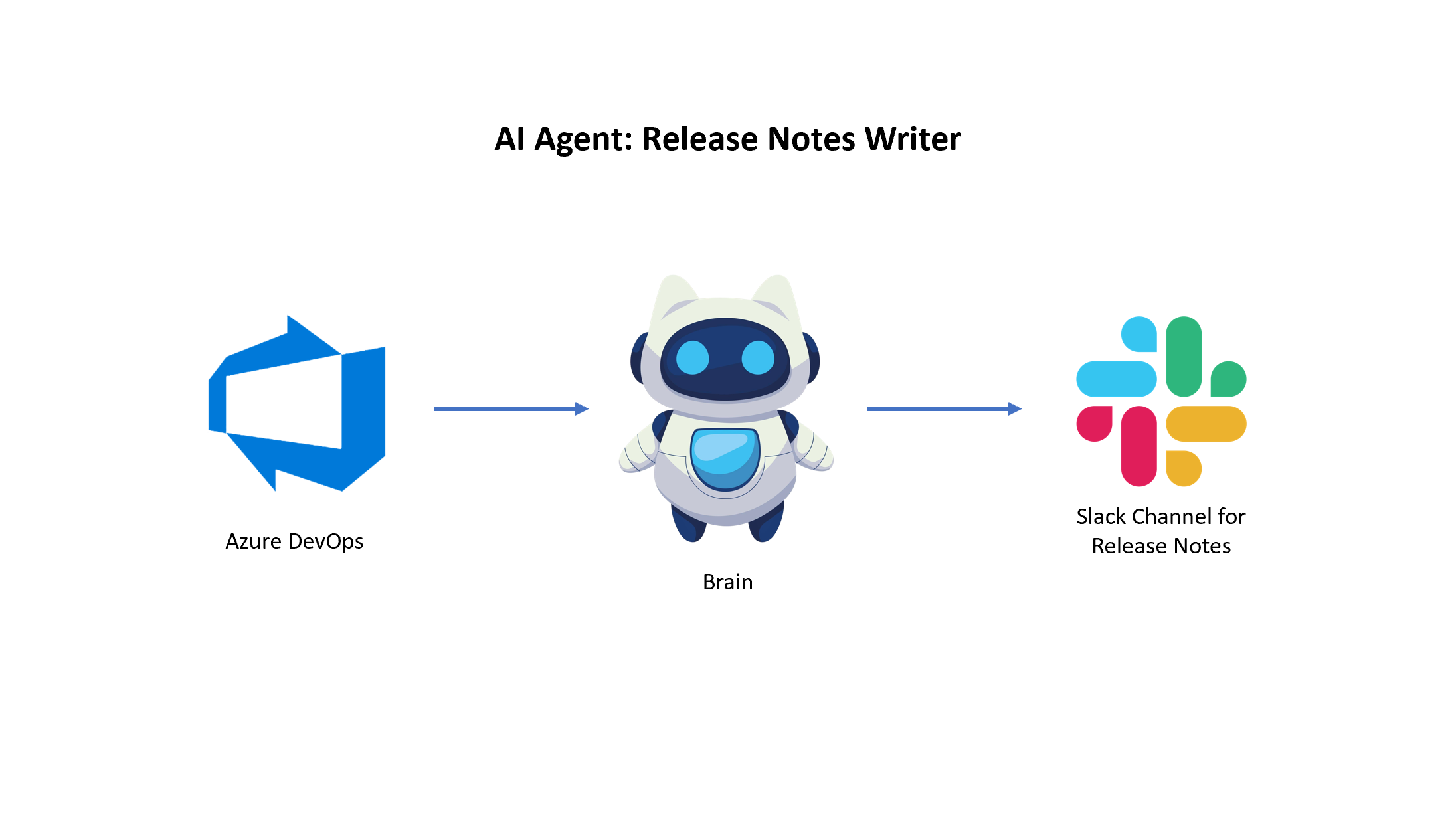
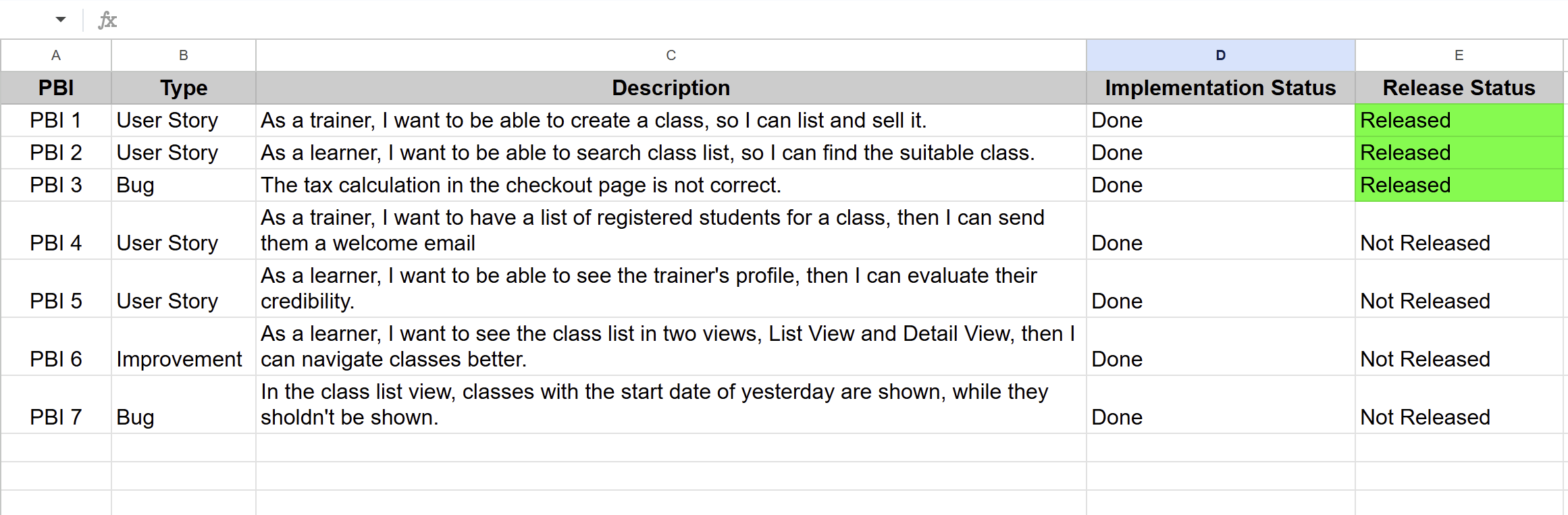
For the sake of simplicity, I use a Google Sheet instead of Azure DevOps, which includes several PBIs. The same story applies to Azure DevOps or Jira.
We use a fictional project named MetaLearn, which is a double-sided learning platform. See this picture, showing several PBIs of the project:
You need a tool to build your AI Agent. In this case, I use Make.com, which is a great, user-friendly AI Agent builder.
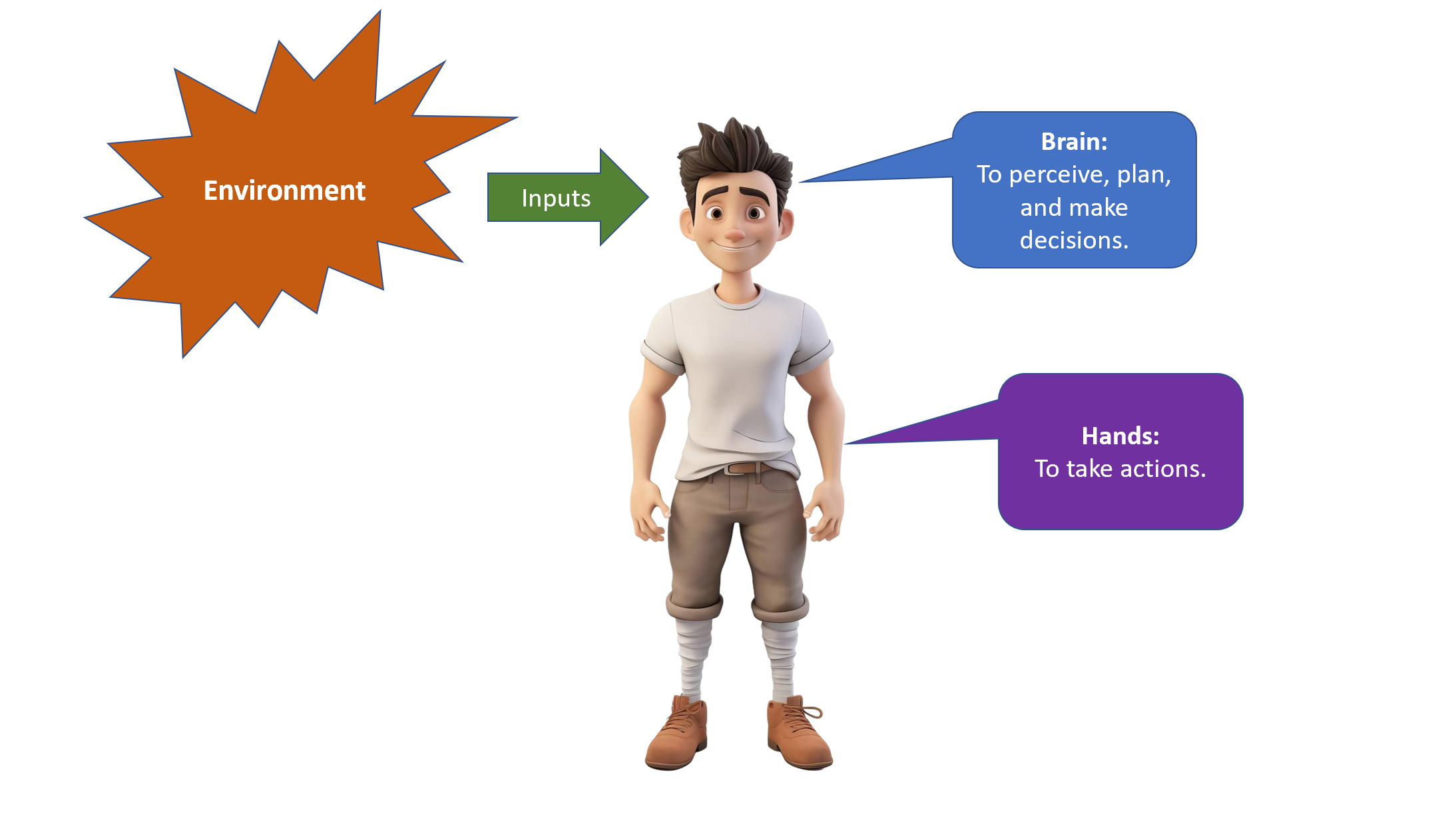
By definition, an AI Agent is an AI system that can communicate with its environment to receive inputs, has a brain to perceive, plan, and make decisions, and has hands to take actions by communicating with its environment again. See this image:
Overview
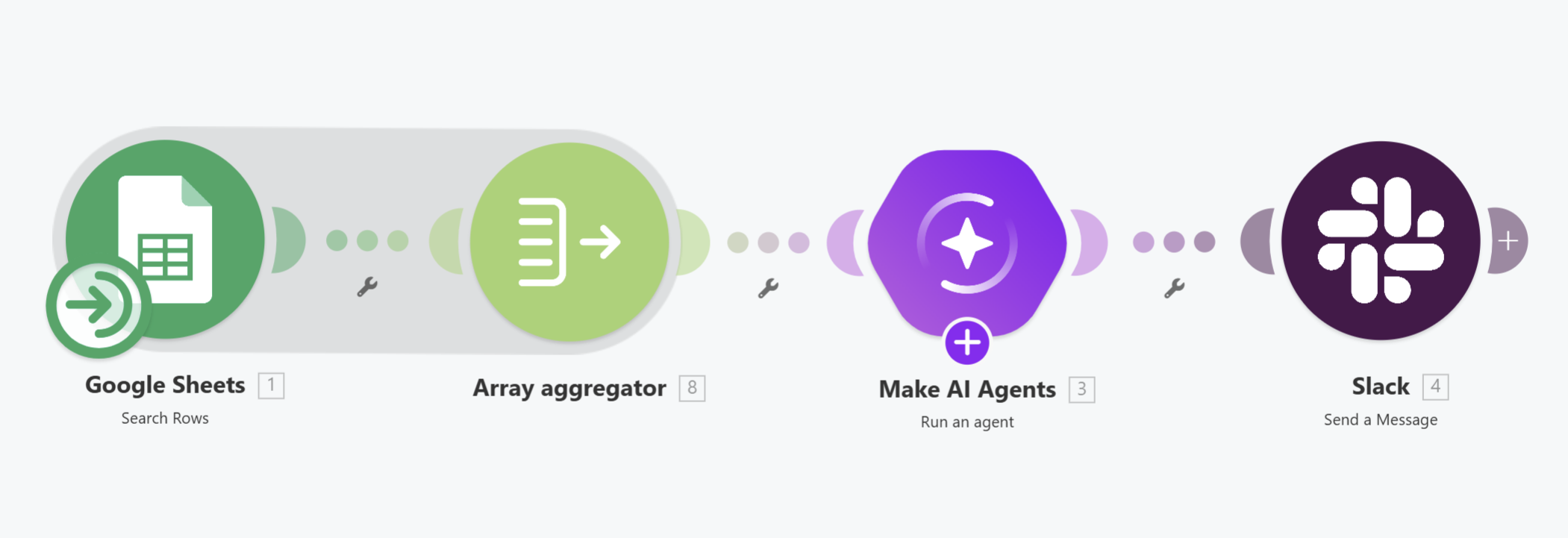
The overview of all the required steps:
- Read release candidate PBIs from the Google Sheet.
- Write release notes for them with the brain of your AI Agent.
- Send the release notes as a message to your Slack channel.
This is the image of all parts (modules) in the AI Agent.
Detailed Steps
Go to Make.com > Scenario > Create scenario
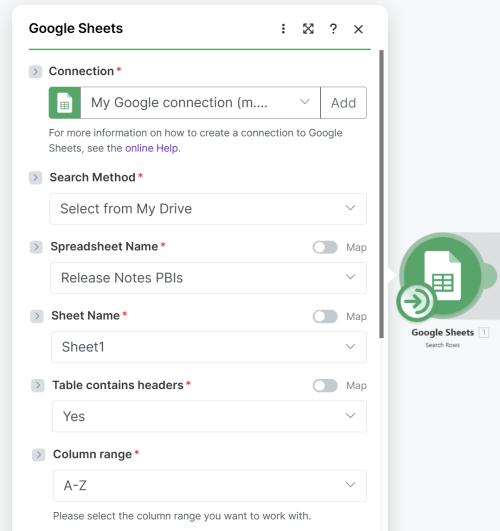
- Add a Google Sheet module. Connect it with your Google Sheet. Then set all the variables like this:
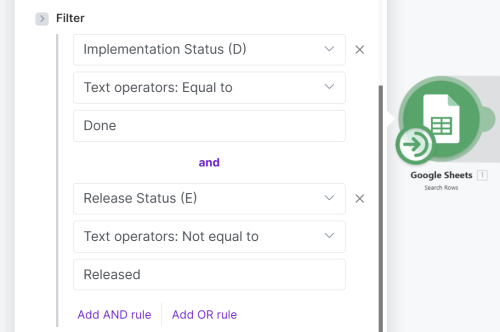
Use these two filters to fetch all the release candidate PBIs:
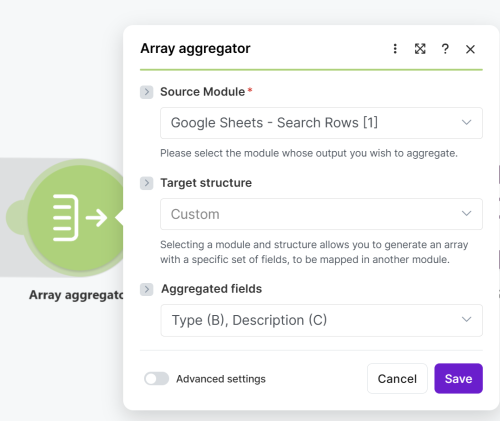
3. Your first module gives you an array of several PBIs. But we need to convert them into one text as the input to the brain of the AI Agent. Because of that, I used a specific module named Array Aggregator. As you can see, I chose Type and Description for the Aggregated Fields variable.
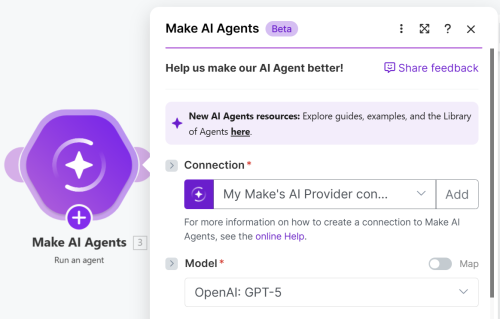
4. Add a module of an AI Agent as the brain. Here, you can choose which AI Model you want to use to process your input and generate release notes. You have a lot of options. I chose OpenAI: GPT-5. It is like in ChatGPT, you are entering the PBIs and asking to write the release notes. You know that behind the scenes of ChatGPT, you can switch between various AI Models.
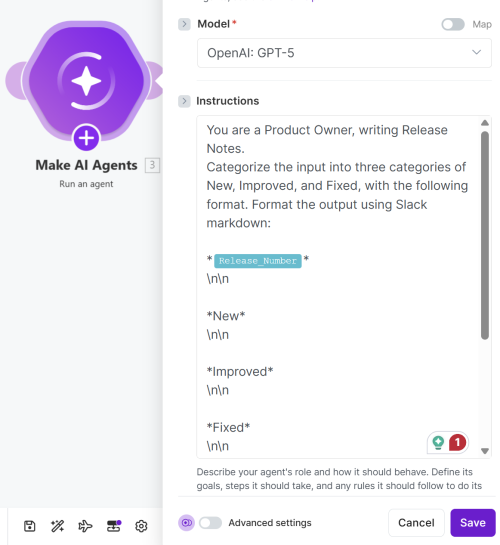
Then you need to give your instructions to the AI Model, guiding it on how to write the release notes. I used this one:
------------------------------------------------------------------------
You are a Product Owner, writing Release Notes.
Categorize the input into three categories of New, Improved, and Fixed, with the following format. Format the output using Slack markdown:
*var.input.Release_Number*
\n\n
*New*
\n\n
*Improved*
\n\n
*Fixed*
\n\n
Then write a release note for each PBI with a maximum of one sentence.
Important Slack formatting rules:
- Use *bold* with asterisks (not markdown double asterisks)
- Use • for bullet points
- Add blank lines between sections with \n\n
------------------------------------------------------------------------
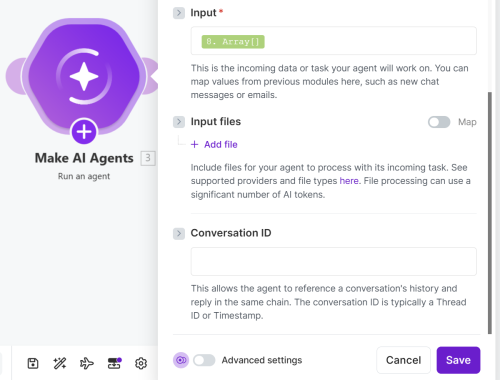
Then the input field should be the Array, which is the output of the previous module, the Array Aggregator.
5. At the end, add a Slack module and connect it with your Slack channel that you have created exclusively for Release Notes.
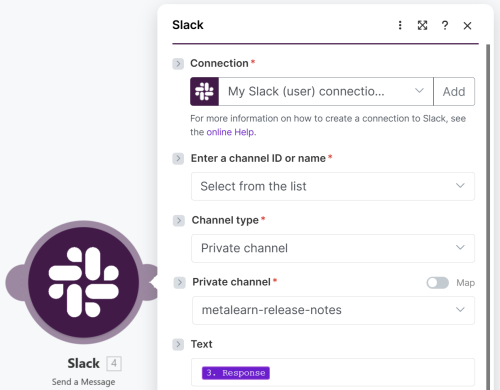
For the “Text” field, I set the “Response” of the AI Agent.
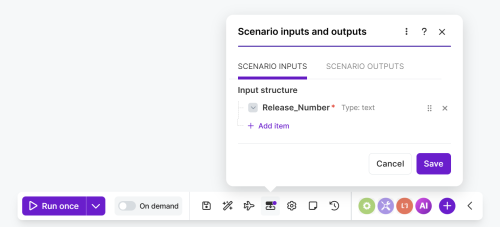
6. The last step is how you want to trigger your AI Agent. I decided to trigger it manually, but you can schedule it to run automatically. To do so, I created an Input field for the scenario named “Release_Number” where I should enter the release number. By the way, this input will be used as the title of the release notes in Slack as well. See this image:
Test the AI Agent
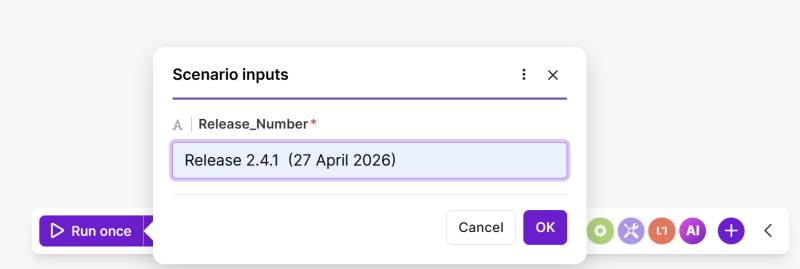
Our AI Agent is now ready. To test it, you need to click the Run Once at the bottom of the scenario page and enter your release number. Something like this:
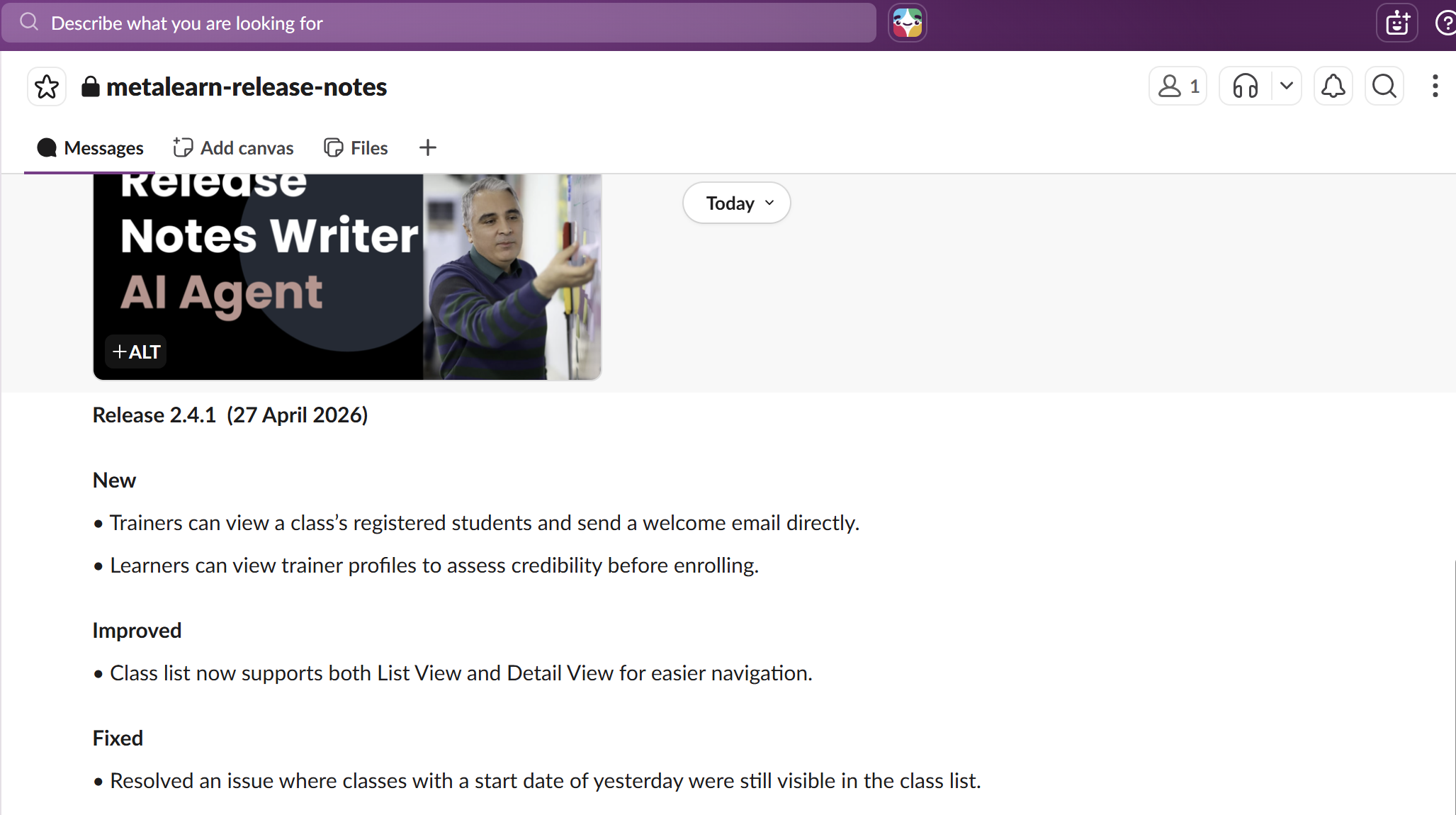
And this is the final result on Slack.
------------------------------------------------------------------------------------------------------------------------------------------------------------
There is one last thing. How can we update the Release Status of the PBIs in the release notes? I mean updating them from “Not Released” to “Released”.
I intentionally don’t implement that and leave it to you to trigger your curiosity.
Hopefully, you enjoyed it and use it in your real work to delegate a big repetitive task to the AI Agents and free up your time for strategic work.
-------------------------------------------------------------------------------
Are you an action taker?
If you are a Product Owner and want to migrate from a classic to an AI-aware Product Owner, attend my upcoming PSPO-AI Essentials (Professional Scrum Product Owner - AI Essentials) class. Click here for the class information.
If you are a Scrum Master and want to migrate from a classic to an AI-aware Scrum Master, attend my upcoming PSM-AI Essentials (Professional Scrum Master - AI Essentials) class. Click here for the class information.